Avalonia Browser app
Small screens and zoom
The browser app keeps its desktop-sized Avalonia layout on narrow screens. The page can be scrolled in both directions to reach the emulator display and controls. When the unscaled app exceeds the browser window on a touch-first device, floating −, +, Fit, and Reset buttons appear. Fit scales the full app to the available width and height; Reset returns to 100% and the top-left corner. If the app fits without scaling, it returns to 100% and the buttons disappear unless an orientation lock is active. The controls stay hidden during startup until Avalonia reports its content size. Desktop browsers keep the app at 100% with no zoom toolbar, including when resized smaller than the app; mouse wheel and trackpad scrolling remain available. The toolbar is enabled by a coarse primary pointer, so mouse-first desktops with a touchscreen also keep the desktop behavior. The contrasting handle stays fixed at the bottom-left in both states, pointing left to collapse the toolbar and right to expand it. App zoom leaves the HTML toolbar at its normal size; native browser pinch zoom remains available. Click or tap it without changing the zoom or scroll position. The loading logo centers in the browser window. When the scaled app overflows the window, scroll over the canvas with a mouse wheel or trackpad, or drag on a touchscreen to pan. The Avalonia Scale slider changes only the emulated display size, while the browser zoom buttons scale the whole app. The canvas scrolls inside a panel sized to the browser window, keeping wide content from triggering whole-page shrinking on iOS. The floating toolbar sits outside that panel; the app's zoom buttons scale the canvas while the toolbar retains its size. Native browser pinch zoom remains available, and repeated toolbar taps do not trigger double-tap page zoom. The canvas grows with the Avalonia content, including larger Scale settings. Browser zoom ranges from 10% to 200%; very wide content may still need horizontal scrolling at 10%. When the scaled canvas fits, it centers in the available window area. Overlay dialogs, including nested acknowledgments, center within the visible canvas area and update when scrolling, zooming, or resizing. Their size is limited to that area, above the zoom toolbar. While an overlay is open, wheel, trackpad, and touch scrolling stay inside Avalonia; the background page does not pan. Page panning resumes after the last overlay closes.
Native virtual keyboard
On touch-first browsers, start C64, VIC-20, Oric, or Apple II, then tap Keyboard in the sidebar. A text field appears below the emulator display and receives focus. Avalonia connects this field to a real HTML input, allowing a phone's native keyboard to enter text into the canvas UI. If the keyboard does not appear, tap the field directly. Hide keyboard closes the field and returns focus to the emulator display.
Committed text is translated to the emulated machine's key presses, with a short hold and release gap between characters. It reaches the keyboard matrix or encoder, so it also works in programs that read the keyboard directly. Enter sends Return, Backspace sends Delete (on Commodore machines) or Backspace, and Escape sends RUN/STOP on Commodore machines or Escape otherwise. Pending text is cancelled on focus loss, Pause, Stop, or opening the monitor.
This is for ordinary typing, rather than held game controls or a complete machine-specific
keyboard. Supported characters depend on the machine; unsupported chunks, including emoji,
are rejected with a status message. The field clears after each commit, so it is not a text
editor with correction history. On C64 and VIC-20, letters use the machine's current character
set; on Apple II Plus, letters are uppercase. Browser/OS keyboards may provide different
editing events; a bridge scoped to this field handles native text commits, composition,
Return, Backspace, and paste through browser events. Other Avalonia input fields keep their
normal behavior. Keyboard appearance and dismissal remain controlled by the browser and OS.
The button stays hidden on mouse-first desktops, including desktop devices with a secondary
touchscreen. Availability follows the browser's primary pointer capability (pointer: coarse),
not the window size or operating system. Switching to a mouse-first primary pointer closes
the field and cancels pending input. Desktop physical and OS accessibility keyboards use the
existing emulator input directly.
Screen orientation
The app keeps the device's orientation on startup. On touch devices with the orientation-lock
and fullscreen APIs, Rotate switches between portrait and landscape. It enters fullscreen
when needed; the button's tooltip and accessible label describe the next orientation.
Browsers can still reject the request, in which case a message explains the limitation.
On touch devices where these APIs are unavailable, including Safari and Brave on iPhone/iPad,
Rotate appears disabled. Hover, focus, or tap it for guidance to turn the device and disable
its rotation lock if needed. Availability is based on browser capabilities rather than its name.
The disabled button remains focusable and tappable to show its explanation; it cannot request rotation.
Tap Rotate again, tap outside the explanation, or press Escape to dismiss it. Tapping inside
keeps it open for reading. Help opened by tapping stays until dismissed; hover/focus help
also disappears after ten seconds.
If the API exists but reports that rotation is unsupported, Rotate stays visible but disabled
and its explanation uses the same dismissal controls, including Reset. Desktop Chromium device emulation exposes the API
without supporting orientation locking; use the device toolbar's rotate icon to test the
landscape layout. An iPhone device preset simulates its viewport, not Safari's capabilities.
Failed requests log [DotNet6502] Orientation request failed. in the browser console with
the request stage, browser error name, target orientation, viewport size, and fullscreen state.
Reset restores automatic rotation along with 100% zoom and the top-left position. It also exits fullscreen if Rotate entered it. Exiting fullscreen through the browser releases the orientation lock. While an orientation lock is active, the toolbar remains available even if the app now fits, so Rotate and Reset stay reachable. Normal device rotation continues to update the layout; Fit adjusts automatically while Fit mode is active.
Safari compatibility
Older Safari releases have had compatibility problems. The macOS startup notice remains as a precaution because a minimum supported Safari version has not been established; it does not test browser capabilities or indicate that startup has failed. Successful BASIC startup does not verify every game, audio mode, or file operation.
Download & Run uses the same CORS proxy as ROM downloads in the browser. It leaves User-Agent selection to the browser; the custom download header is used only by the native app when contacting sources directly.
Browser script checks
From the repository root with Node.js 24, run:
These checks execute the production zoom script with a deterministic DOM and browser API model. They cover Fit/Reset, window and content resizing, visible dialog coordinates, modal wheel routing, toolbar state, orientation/fullscreen success and failure paths, and native keyboard text, editing, composition, paste, and focus routing. They run in both the independent build/test workflow and Sonar; the latter also imports JavaScript coverage. Canvas rendering, pointer hit-testing, and physical screen rotation still require verification in a real browser/device.
Overview
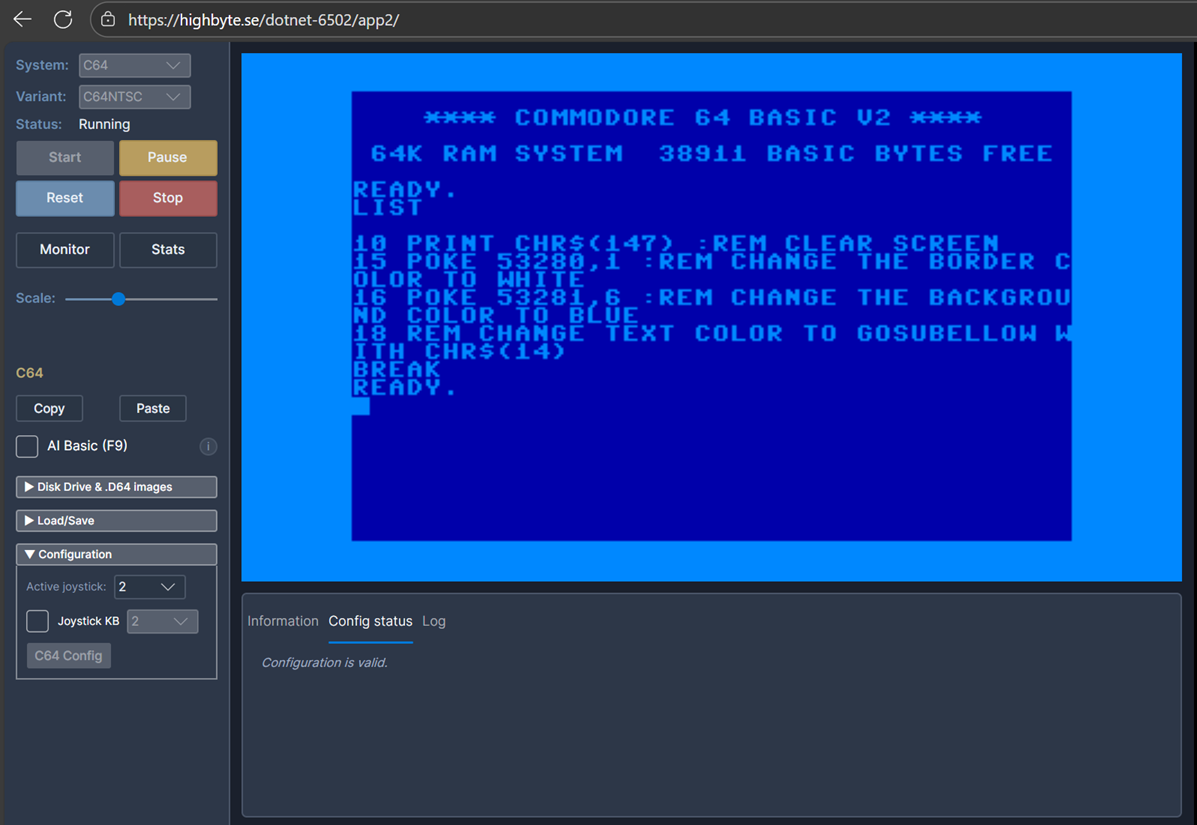
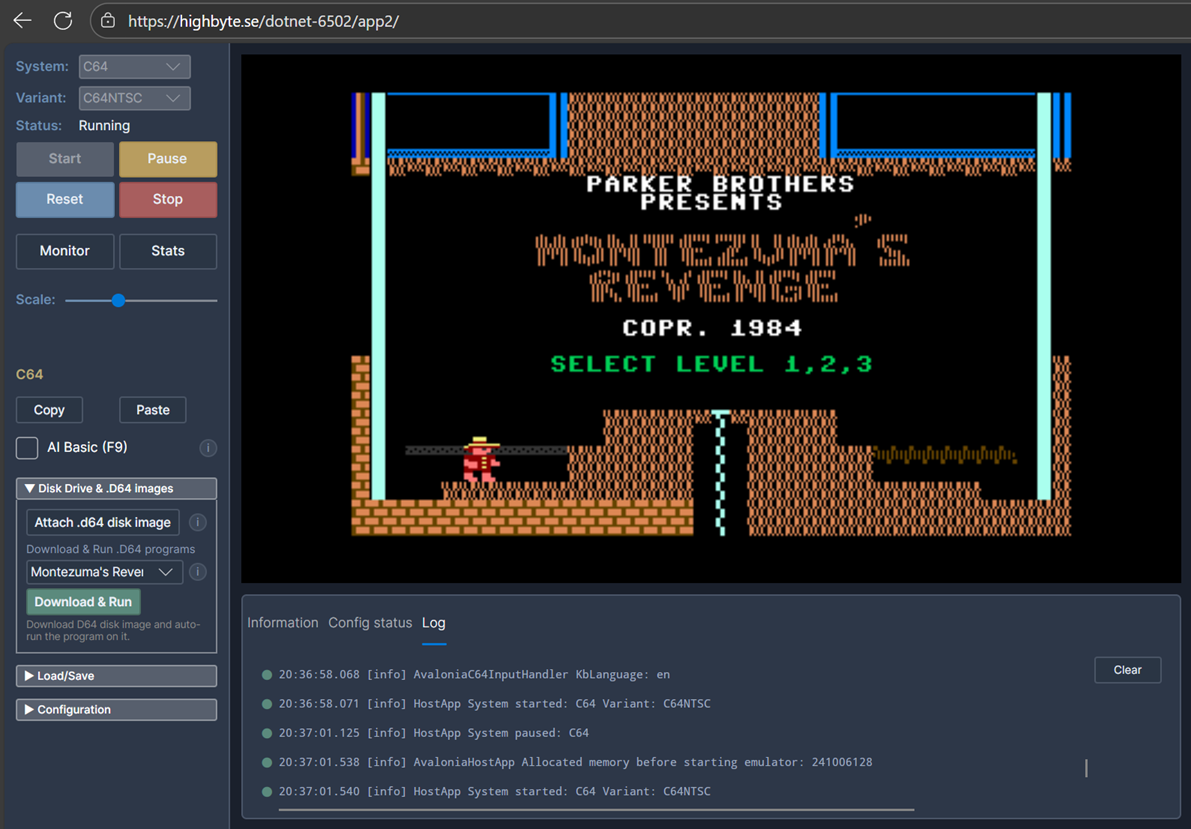
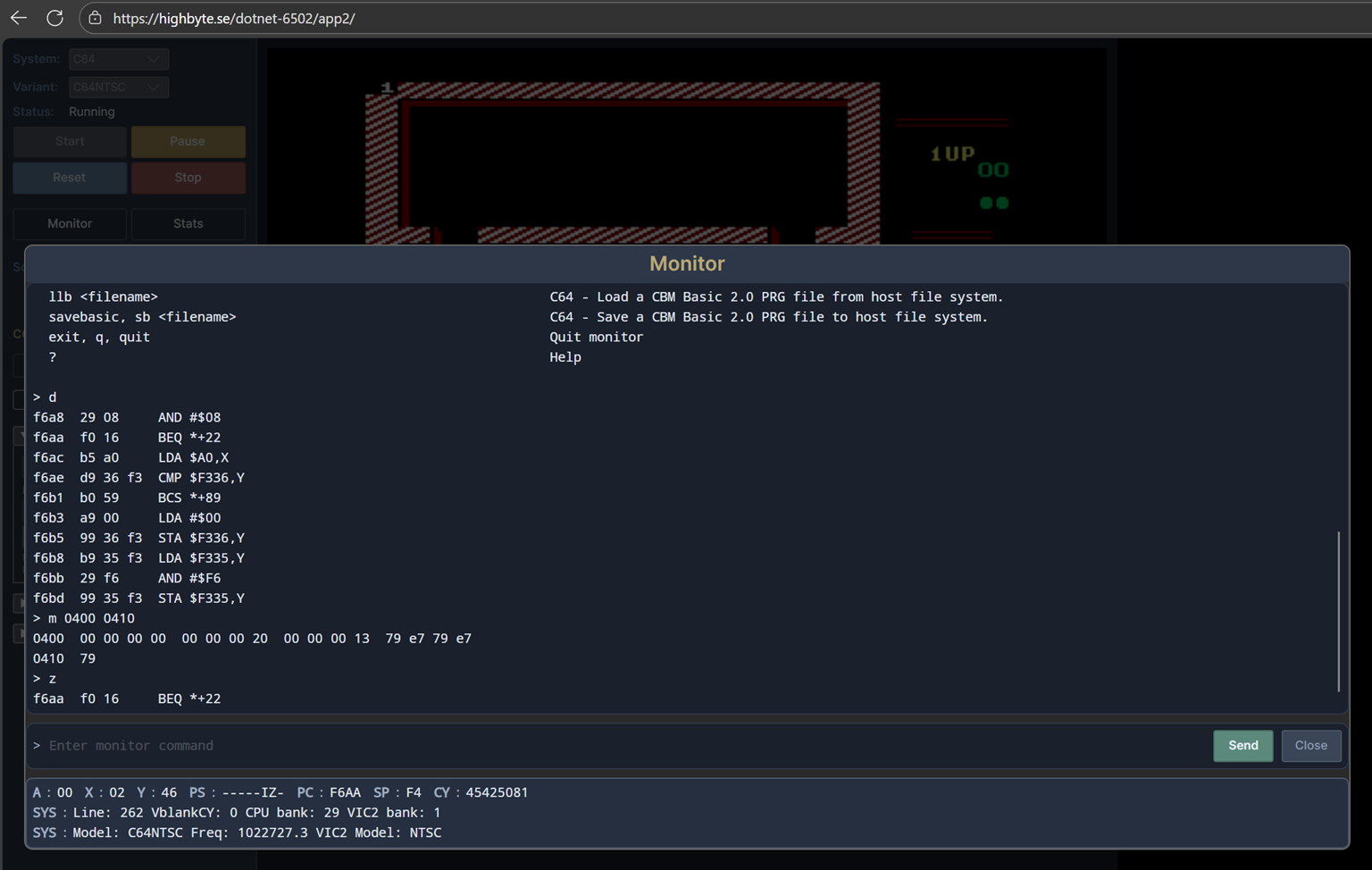
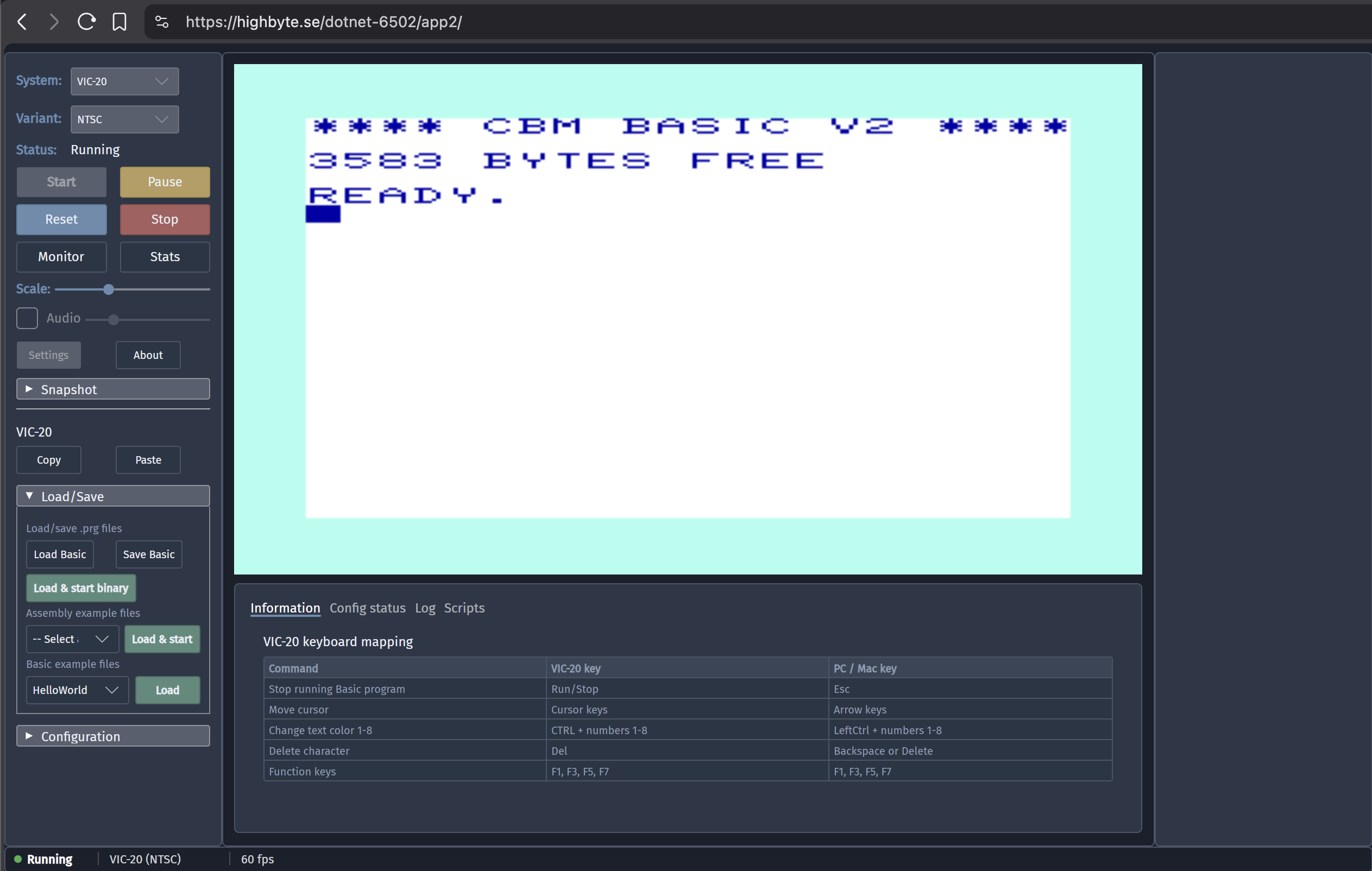
Cross-platform browser app written with Avalonia UI. Shares almost all code (including UI) with the Avalonia Desktop app.
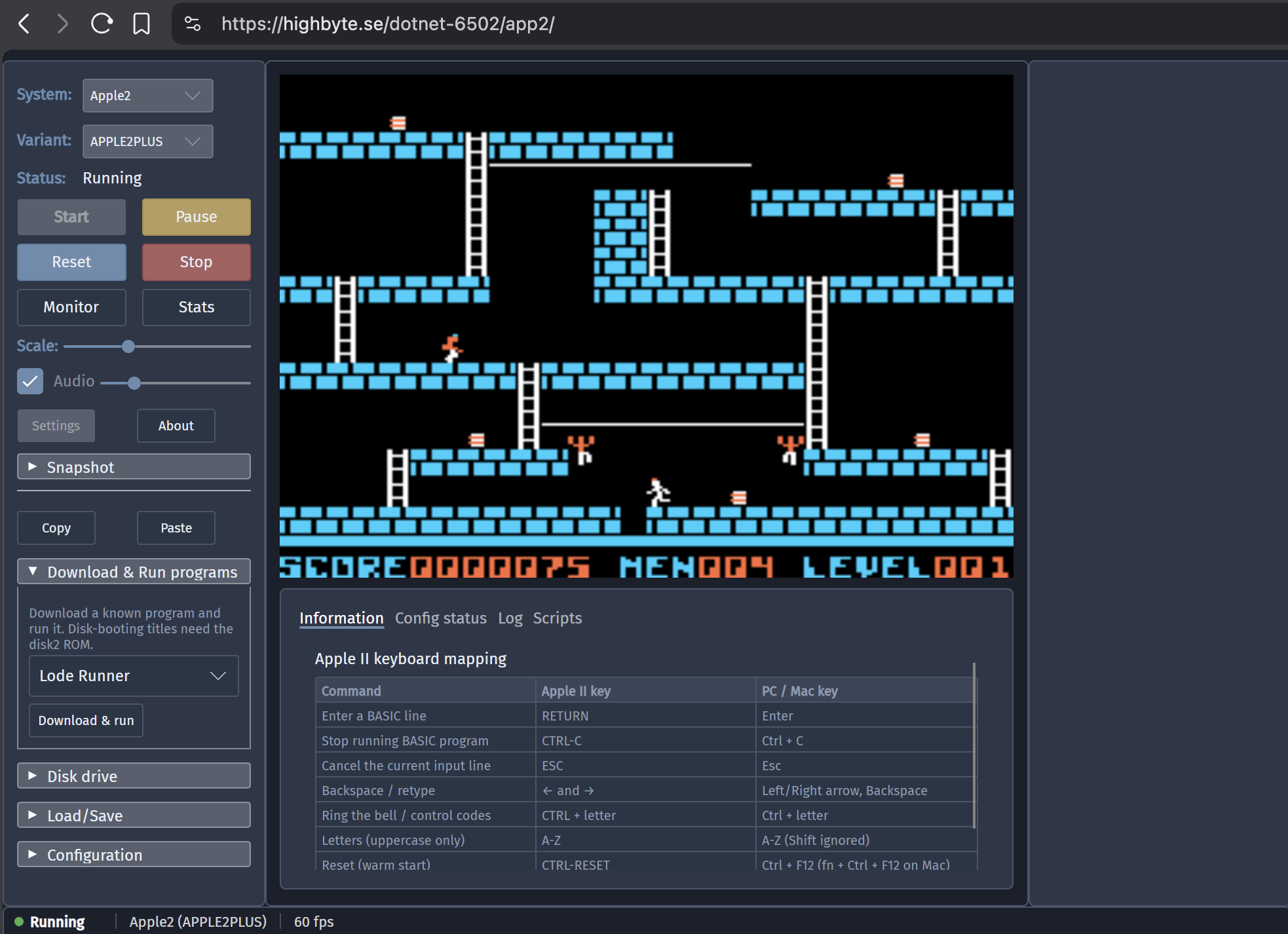
Technologies:
- UI:
AvaloniaUI controls. - Rendering:
Highbyte.DotNet6502.Impl.Avalonia. - Input:
Highbyte.DotNet6502.Impl.Avalonia+Highbyte.DotNet6502.Impl.Browser(gamepad). - Audio:
Highbyte.DotNet6502.Impl.NAudio, playback via WebAudio JS interop. Two C64 audio providers available: a sample-based one (good but not perfect accuracy — the default) and a command-stream synthesizer one (low CPU but inaccurate). See C64 audio.
Live version: https://highbyte.se/dotnet-6502/app2
Install
The browser app runs entirely in the browser — no installation required. Open the live version and start the emulator from the UI.
To self-host, see Run from command line below.
Features
System-specific features (ROMs, display, input, audio, SwiftLink, the C64 menu, and the browser-only share link) are documented on the per-system pages — shared with the Avalonia Desktop app, with browser-specific differences called out inline:
- C64 in the Avalonia apps
- VIC-20 in the Avalonia apps
- Apple II Plus in the Avalonia apps
- Oric Atmos in the Avalonia apps
- Generic computer in the Avalonia apps
Lua scripting
The browser app supports the same Lua scripting API as the Avalonia Desktop app, except for filesystem and TCP access (the browser sandbox does not allow them; the key/value store falls back to localStorage). For the full guide, see Tools / Scripting.
URL query parameters
The Avalonia Browser app supports URL-driven startup automation. This is the browser counterpart to the Avalonia Desktop app's CLI arguments: instead of passing --system or --script, you encode the request in the page URL query string. The parameters and groups below mirror the desktop reference one-to-one where the platforms overlap.
Parameters are grouped below into General parameters (system-agnostic — valid for any system) and one group per system (interpreted by that system's plugin; currently only C64).
The Depends on column lists each parameter's requirements and any parameters it is mutually exclusive with. The desktop equivalent is noted per group: the main difference is that the browser fetches its load sources over HTTP (loadPrgUrl / loadD64Url / loadCrtUrl / basicUrl / scriptUrl), whereas the desktop app reads from the local filesystem (--loadPrg / --loadD64 / --loadCrt / --basicFile / --script) and additionally offers URL variants (--loadPrgUrl / --loadD64Url / --loadCrtUrl).
Query parameter names are case-insensitive. Boolean flags treat an empty value, 1, true, and yes as true.
Validation rules are intentionally forgiving: invalid combinations are ignored (logged to the F12 DevTools console) and the normal UI still loads.
General parameters (system-agnostic)
These are valid for any system.
System selection & lifecycle
Desktop equivalents: --system, --systemVariant, --start, --waitForSystemReady, --loadPrg / --loadPrgUrl, --runLoadedProgram, --load-snapshot.
| Query parameter | Description | Depends on | Example |
|---|---|---|---|
system |
Select a system (e.g. C64, Generic). |
— | system=C64 |
systemVariant |
Select a system variant (e.g. C64PAL, C64NTSC). |
Requires system. |
systemVariant=C64PAL |
start |
Auto-start the selected system. | Requires system. |
start=1 |
waitForSystemReady |
Wait until the system reports ready (e.g. C64 BASIC prompt). | Requires system and start. |
waitForSystemReady=1 |
loadPrgUrl |
Fetch a .prg over HTTP and load it into memory. Relative URLs resolve from the app origin. |
Requires system and start. Exclusive with loadD64Url / loadCrtUrl / basicText / basicUrl. |
loadPrgUrl=prg/c64/demo.prg |
runLoadedProgram |
Start executing the loaded program from its load address (or, with loadD64Url, paste the disk run commands). |
Requires loadPrgUrl or loadD64Url. |
runLoadedProgram=1 |
loadSnapshotUrl |
Fetch a .d6502snap emulator-state snapshot over HTTP and restore it. The snapshot's manifest determines the system, so no system is needed. The machine is left paused after restore; add start=1 to resume. Mirrors desktop --load-snapshot. |
Exclusive with system, systemVariant, loadPrgUrl, loadD64Url, loadCrtUrl, runLoadedProgram, and script / scriptUrl. |
loadSnapshotUrl=snapshots/state.d6502snap |
loadPrgUrl copies the fetched file's bytes to the load address in its 2-byte header — but how a
loaded .prg is interpreted and run is system-specific. The systems documented below may add
behavior on top of this (e.g. based on the load address); see the relevant system's parameter
group. Cartridge images use the C64-specific .crt startup flow instead of PRG loading.
Lua scripting (browser only)
Desktop equivalents: --script (local file, repeatable) / --scriptDir. URL-driven Lua is disabled by default — enable Allow URL-driven scripts in the browser app's general settings, save, then reload.
| Query parameter | Description | Depends on | Example |
|---|---|---|---|
script |
Run an inline Lua script. Base64url-encoded UTF-8 text. | Exclusive with scriptUrl and all system-driven parameters above. Gated by Scripting.AllowUrlScripts. |
script=bG9nLmluZm8oJ2hpJyk |
scriptUrl |
Fetch a Lua script from a relative or absolute URL and run it. | Same as script (avoids URL-length limits). |
scriptUrl=scripts/demo.lua |
Not available in the browser
Logging, the debug adapter, remote control, and the desktop diagnostics flags (--stats-interval / --exit-after) have no browser equivalent — the browser sandbox cannot open TCP servers or terminate its own tab. Use the F12 DevTools console for log output.
C64 parameters (system-specific)
These are interpreted by the C64 plugin and build on the general system=C64, start, and waitForSystemReady parameters.
Loading a C64 .prg (BASIC vs machine-language)
The general loadPrgUrl parameter copies the fetched file's bytes to the load address in its
2-byte header. No separate parameter is needed for C64 BASIC programs; the C64 plugin adapts
automatically based on the load address:
- C64 BASIC program (load address
$0801): after the load, the BASIC variable pointers are initialized automatically, and withrunLoadedProgramthe program is started by typingRUN. This path requireswaitForSystemReadyso the load andRUNhappen after the BASIC prompt is up. - Machine-language program (any other load address):
runLoadedProgramsets the CPU program counter to the load address instead.
So a C64 BASIC .prg is loaded and run with
?system=C64&start=1&waitForSystemReady=1&loadPrgUrl=prg/c64/prog.prg&runLoadedProgram=1.
BASIC source paste
Desktop equivalents: --basicText (plain text), --basicFile (local file), --basicUrl, --runBasic.
| Query parameter | Description | Depends on | Example |
|---|---|---|---|
basicText |
Paste inline C64 BASIC source. Base64url-encoded UTF-8 text. | Requires system=C64, start, waitForSystemReady. Exclusive with basicUrl, loadPrgUrl, loadD64Url, loadCrtUrl. |
basicText=MTAgcHJpbnQ... |
basicUrl |
Fetch C64 BASIC source text over HTTP and paste it. | Same as basicText. |
basicUrl=basic/c64/hello-world.bas |
runBasic |
Queue RUN after the BASIC source is pasted. |
Requires basicText or basicUrl. |
runBasic=1 |
Disk image (.d64)
Desktop equivalents: --loadD64 (local file) / --loadD64Url (URL), --d64Program, --diskMount. Bytes are fetched after the C64 has booted to BASIC ready, so the user sees the live BASIC prompt during the download (no blank page).
| Query parameter | Description | Depends on | Example |
|---|---|---|---|
loadD64Url |
Fetch a C64 .d64 disk image over HTTP. ZIP archives are also accepted; by default the first .d64 entry is used. |
Requires system=C64, start, waitForSystemReady, and exactly one of d64Program / diskMount. Exclusive with loadPrgUrl / loadCrtUrl / basicText / basicUrl. |
loadD64Url=d64/game.d64 |
loadD64ZipEntry |
Select an exact .d64 entry inside a ZIP archive. Use forward slashes for directories. |
Requires loadD64Url and the source must be a ZIP archive. |
loadD64ZipEntry=side-b/game.d64 |
d64Program |
Direct-load a PRG from the image into memory (no disk mount). * selects the first directory entry; URL-encode names with spaces. |
Requires loadD64Url. Exclusive with diskMount. |
d64Program=* |
diskMount |
Mount the image in drive 8 and prepare LOAD"*",8,1 + RUN. |
Requires loadD64Url. Exclusive with d64Program. |
diskMount=1 |
With loadD64Url, runLoadedProgram pastes the disk's run commands after load / mount: LOAD"*",8,1 + RUN for diskMount, just RUN for d64Program.
Cartridge image (.crt)
Desktop equivalents: --loadCrt (local file) / --loadCrtUrl (URL). Bytes are fetched during the
C64 startup lifecycle, and the cartridge attach operation resets / boots the machine into the
cartridge. The target may be a raw .crt image or a ZIP archive containing exactly one .crt
entry, or a ZIP archive with an explicit loadCrtZipEntry.
| Query parameter | Description | Depends on | Example |
|---|---|---|---|
loadCrtUrl |
Fetch and attach a C64 .crt cartridge image over HTTP. ZIP archives containing exactly one .crt are also accepted. |
Requires system=C64, start. waitForSystemReady is not required. Exclusive with loadPrgUrl, loadD64Url, basicText, and basicUrl. |
loadCrtUrl=crt/fc3.crt |
loadCrtZipEntry |
Select an exact .crt entry inside a ZIP archive. Use forward slashes for directories. |
Requires loadCrtUrl and the source must be a ZIP archive. Allows archives with multiple .crt files when the entry is explicit. |
loadCrtZipEntry=carts/fc3.crt |
The runLoadedProgram parameter does not apply to .crt images.
Runtime config
Desktop equivalents: --keyboardJoystickEnabled, --keyboardJoystickNumber, --audioEnabled. These apply for any C64 start path (plain start, loadPrgUrl, BASIC paste, loadD64Url, loadCrtUrl).
| Query parameter | Description | Depends on | Example |
|---|---|---|---|
keyboardJoystickEnabled |
Force-enable the C64 keyboard-emulated joystick before the system starts. | Requires system=C64. |
keyboardJoystickEnabled=1 |
keyboardJoystickNumber |
C64 joystick port the keyboard emulates (and which gamepad port drives). Must be 1 or 2. |
Requires system=C64. Implies keyboardJoystickEnabled. |
keyboardJoystickNumber=2 |
audioEnabled |
Override C64 audio enable before the system starts (true / false). |
Requires system=C64. |
audioEnabled=false |
When a URL starts system=C64 and the app does not yet have the required C64 ROMs, the browser startup flow prompts the user to acknowledge the ROM download terms and can download the ROMs before continuing. This lets first-run automation links work without opening the C64 config dialog first.
Examples
# Start C64 PAL and wait until the machine is ready
?system=C64&systemVariant=C64PAL&start=1&waitForSystemReady=1

# Load and run a bundled PRG
?system=C64&start=1&waitForSystemReady=1&loadPrgUrl=prg/c64/smooth_scroller_and_raster.prg&runLoadedProgram=1

# Paste BASIC source from a browser-served text file and run it
?system=C64&start=1&waitForSystemReady=1&basicUrl=basic/c64/hello-world.bas&runBasic=1

# Paste the same BASIC source inline and run it
?system=C64&start=1&waitForSystemReady=1&basicText=MTAgYzE9NzpjMj0xNAoyMCBjPWMxCjMwIGlmIGM9YzEgdGhlbiBjPWMyIDogZ290byA1MAo0MCBpZiBjPWMyIHRoZW4gYz1jMQo1MCBwb2tlIDUzMjgwLGMKNjAgcHJpbnQgImhlbGxvIHdvcmxkISIKNzAgZm9yIGk9MSB0byAxNTA6bmV4dAo4MCBnb3RvIDMwCg&runBasic=1

# Mount a .d64 in drive 8, paste LOAD"*",8,1 + RUN, keyboard-joystick on port 2
?system=C64&systemVariant=C64PAL&start=1&waitForSystemReady=1&loadD64Url=d64%2Fgiana-sisters.d64&diskMount=1&runLoadedProgram=1&keyboardJoystickEnabled=1&keyboardJoystickNumber=2

# Direct-load the first PRG from a .d64 (no disk mount) and RUN it
?system=C64&start=1&waitForSystemReady=1&loadD64Url=d64%2Fgiana-sisters.d64&d64Program=*&runLoadedProgram=1

# Direct-load the first PRG from a selected .d64 inside a ZIP archive
?system=C64&start=1&waitForSystemReady=1&loadD64Url=archives%2Fgames.zip&loadD64ZipEntry=side-b%2Fgiana-sisters.d64&d64Program=*&runLoadedProgram=1

# Attach a .crt cartridge image
?system=C64&start=1&loadCrtUrl=crt%2Ffc3.crt

# Attach a selected .crt inside a ZIP archive
?system=C64&start=1&loadCrtUrl=archives%2Fcarts.zip&loadCrtZipEntry=carts%2Ffc3.crt

# Start C64 with keyboard-joystick on port 2 and audio disabled (no .d64, no PRG)
?system=C64&start=1&waitForSystemReady=1&keyboardJoystickEnabled=1&keyboardJoystickNumber=2&audioEnabled=false

# Run an inline Lua script (base64url for: log.info('hello'))
?script=bG9nLmluZm8oJ2hlbGxvJyk

# Run a Lua script fetched over HTTP
?scriptUrl=scripts/example_emulator_control.lua

# Restore an emulator-state snapshot (machine is left paused after restore)
?loadSnapshotUrl=snapshots%2Fc64-game.d6502snap

# Restore a snapshot and resume running it
?loadSnapshotUrl=snapshots%2Fc64-game.d6502snap&start=1
The browser app ships the basicUrl sample above as basic/c64/hello-world.bas, containing:
10 c1=7:c2=14
20 c=c1
30 if c=c1 then c=c2 : goto 50
40 if c=c2 then c=c1
50 poke 53280,c
60 print "hello world!"
70 for i=1 to 150:next
80 goto 30
Important differences from desktop automation
loadPrgUrl,basicUrl,loadD64Url,loadCrtUrl,loadSnapshotUrl, andscriptUrluse browser HTTP fetch semantics, so normal browser origin and CORS rules apply. The desktop app reads its load sources from the local filesystem (--loadPrg/--loadD64/--loadCrt/--basicFile/--load-snapshot/--script) and additionally offers HTTP variants (--loadPrgUrl/--loadD64Url/--loadCrtUrl/--basicUrl).loadSnapshotUrlrestores a full.d6502snapemulator-state snapshot; the snapshot's manifest defines the machine, so it does not take asystemparameter and is mutually exclusive with the other load sources and scripts. The machine is left paused after restore — addstart=1to resume. Mirrors desktop--load-snapshot.basicTextis base64url-encoded in the browser (it travels in a URL); the desktop--basicTexttakes plain text, and--basicFilereads a local file.basicText/basicUrlare C64-only and use the normal keyboard paste path after BASIC is ready;runBasic=1simply appendsRUNand Return after the pasted source.loadD64Urlis fetched after the C64 has booted to BASIC ready, so a slow remote.d64shows progress as a visible BASIC prompt rather than a blank Avalonia page. The desktop equivalents (--loadD64 <path>local,--loadD64Url <url>) read from the filesystem or HTTP respectively. If the URL points at a ZIP archive,loadD64ZipEntrycan select an exact.d64; otherwise the first.d64entry is used.loadCrtUrldoes not requirewaitForSystemReady; attaching the cartridge resets / boots the C64 into the cartridge. The URL may point at a raw.crt, at a ZIP archive containing exactly one.crt, or at a ZIP archive with an exact.crtselected byloadCrtZipEntry.- URL-driven Lua is disabled by default. Enable Allow URL-driven scripts (script / scriptUrl query params) in the browser app's general settings, save, then reload the page.
- URL-driven scripts do not behave exactly like desktop
--script: the browser app still selects the configured default system first, then enables the injected script. The script can still take over by calling APIs such asemu.select(...)andemu.start().
How to run locally for development
For development system requirements, see Development.
Visual Studio (Windows)
Open solution dotnet-6502.slnx. Set project Highbyte.DotNet6502.App.Avalonia.Browser as startup, and start with F5.
Important
Running a Debug build of the Avalonia Browser app is very slow. To get acceptable performance a published release build with AOT is required. The Avalonia Desktop app has ok performance in Debug mode, so using the Desktop app when developing and testing locally is recommended.
Run from command line
Run Debug build (very slow)
Open browser at http://localhost:5000.
Run optimized Publish build (AOT)
To serve the published build, the example below uses the .NET global tool dotnet-serve. Install with dotnet tool install --global dotnet-serve.
If you want to test the lower-latency browser SID sample modes locally (DirectWriteAuto /
DirectWriteAudioWorklet), the static host must return these headers on the app responses:
Cross-Origin-Opener-Policy: same-originCross-Origin-Embedder-Policy: require-corp
Those headers let the page become crossOriginIsolated, which is required for
SharedArrayBuffer and the AudioWorklet shared-ring path used by the low-latency mode.
PowerShell:
cd ./src/apps/Avalonia/Highbyte.DotNet6502.App.Avalonia.Browser
if(Test-Path ./bin/Publish/) { del ./bin/Publish/ -r -force }
dotnet publish -c Release -o ./bin/Publish/
dotnet serve -p 5001 -o:/ --directory ./bin/Publish/wwwroot/ `
  -h "Cross-Origin-Opener-Policy: same-origin" `
  -h "Cross-Origin-Embedder-Policy: require-corp"
macOS / Linux:
cd ./src/apps/Avalonia/Highbyte.DotNet6502.App.Avalonia.Browser
rm -rf ./bin/Publish/
dotnet publish -c Release -o ./bin/Publish/
dotnet serve -p 5001 -o:/ --directory ./bin/Publish/wwwroot/ \
  -h "Cross-Origin-Opener-Policy: same-origin" \
  -h "Cross-Origin-Embedder-Policy: require-corp"
A browser is automatically opened at http://localhost:5001.
Deployed site headers (Cloudflare)
The live site (https://highbyte.se/dotnet-6502/app2) is served from GitHub Pages
behind Cloudflare. GitHub Pages cannot set arbitrary response headers, so the same
Cross-Origin-Opener-Policy / Cross-Origin-Embedder-Policy headers are injected at
the Cloudflare edge by a small Worker scoped to the emulator app paths
(/dotnet-6502/app*), leaving the docs site unaffected.
The Worker source and its deploy / verify steps live in
tools/cloudflare/app-sec-headers/.